A guide for hosts — from creating a meeting to sharing the recording.
Updated 27 October 2026
Video meetings for large groups
Up to 70 participants per meeting, within your organisation’s licence. Everyone waits in the lobby until the host admits them — or turn on No approval needed so anyone with the link just enters a name.
Draw on anything you present
Twelve drawing tools that work on slides, the whiteboard, PowerPoint and PDF.
Keep the meeting in order
Lock microphone, camera, chat and drawing for the whole room or one participant; freeze screens when needed.
Built-in presentation tools
A grid whiteboard, polls and breakout rooms, ready to use in the room.
Recording and attendance
Record the meeting with one button, automatic attendance, and share the recording by a single link.
Windows app for hosts
Draw on PowerPoint and any application, a floating panel that keeps the meeting in view, automatic updates.
Getting started
Meetings run in the browser, at the same address you used to open this handbook. Hosts should also install the Windows app to draw on PowerPoint and any other application; participants only need a browser.
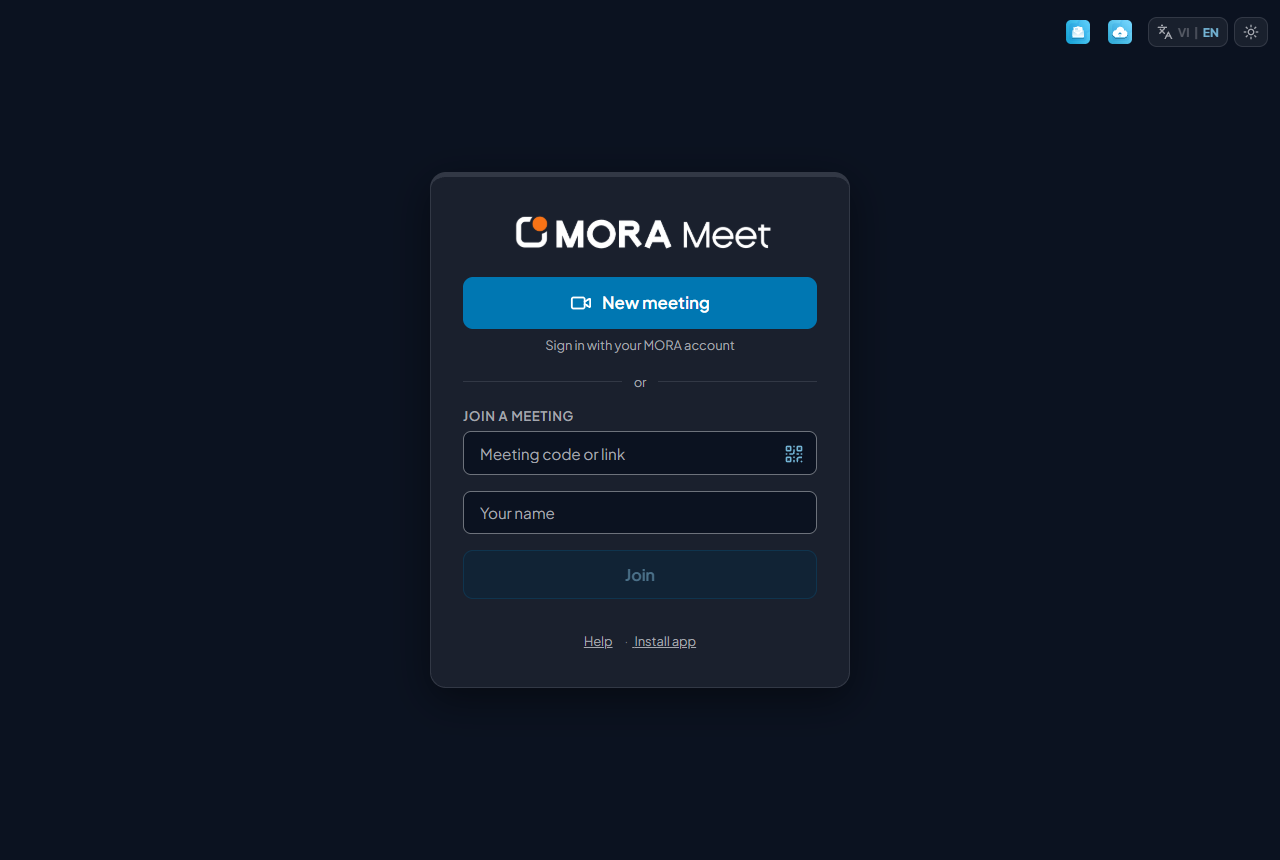
The first screen has two jobs: the New meeting button at the top, and the Join a meeting block below it (code box, name box, Join button).
Creating a meeting
On the first screen, click New meeting. If you are not signed in yet, you are taken to the sign-in page (the MORA Meet service uses your MORA account) and then straight into the meeting room with a newly generated meeting code. On installations without single sign-on, the sign-in box for the account your administrator gave you, or the shared host code box, opens right inside the card.
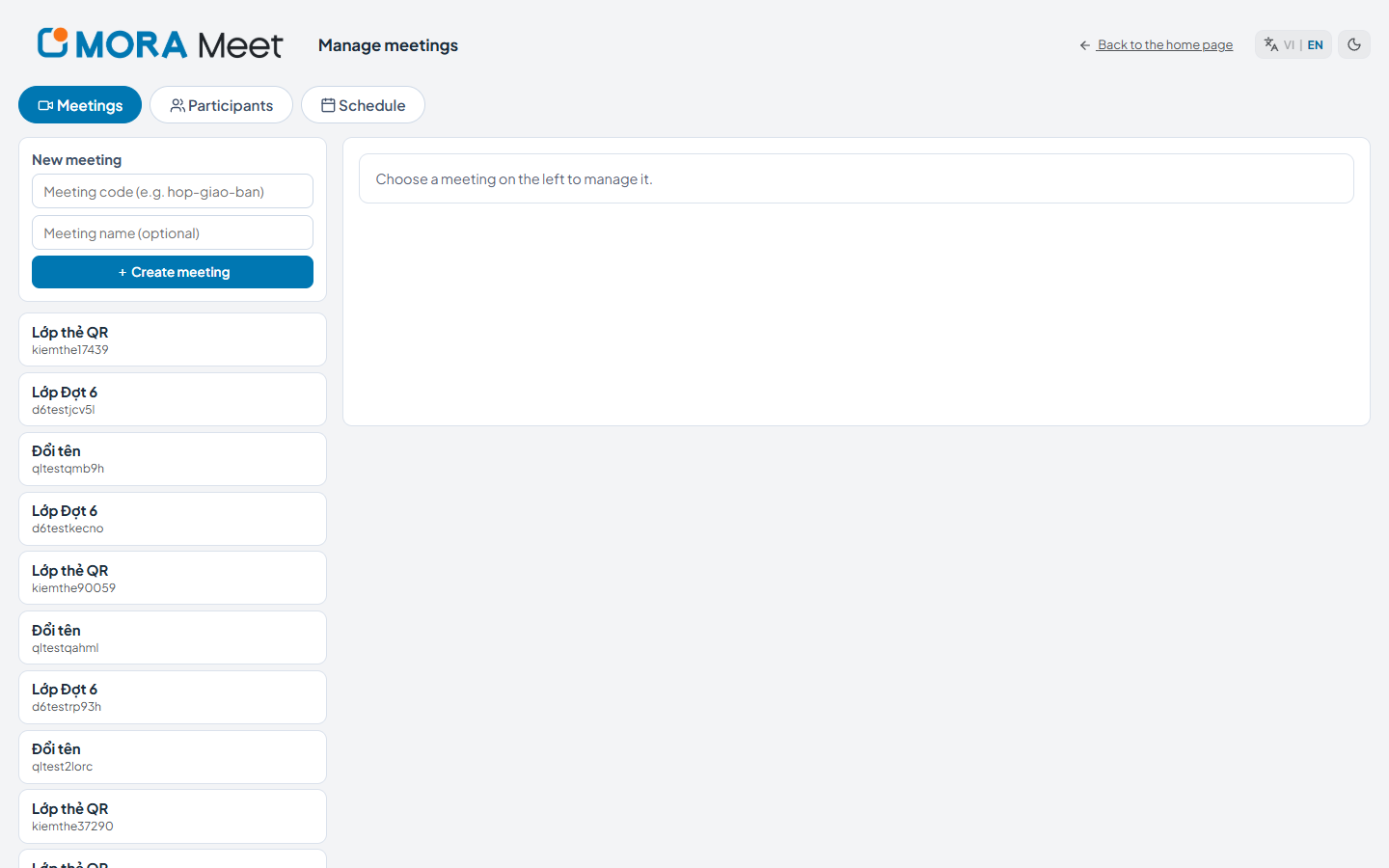
Once signed in, the first screen also shows your My meetings list. Click a meeting to start it immediately; See all opens the Manage page.
In the meeting room, send the invite link or the meeting code (it looks like abc-defg-hij) to the participants. To give it a friendly name or schedule a recurring meeting in advance, use the Manage meetings page.
Two switches in the top-right corner
The entry page, the sign-in page, the lobby, the page opened from an invite link and the “page not found” page all have two small buttons in the top-right corner; inside a meeting they sit on the top bar. The Manage page has them too: in the top-right corner of its sign-in screen, and at the end of the header row, next to “Back to the home page”, once you are in; its light / dark choice is shared with the entry page. The admin page has them too: in the top-right corner of its sign-in screen, and on the header bar next to “Sign out” once you are in; its light / dark choice is shared with the entry page as well. This handbook has its own light / dark button on its top bar, and the web version also has a VI | EN link. The app download page does not have these buttons yet, and the What’s new page has only the light / dark button.
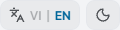
The left button switches language, the right one switches between light and dark.
VI | EN — switches the interface language. The active language is highlighted and remembered on that device.
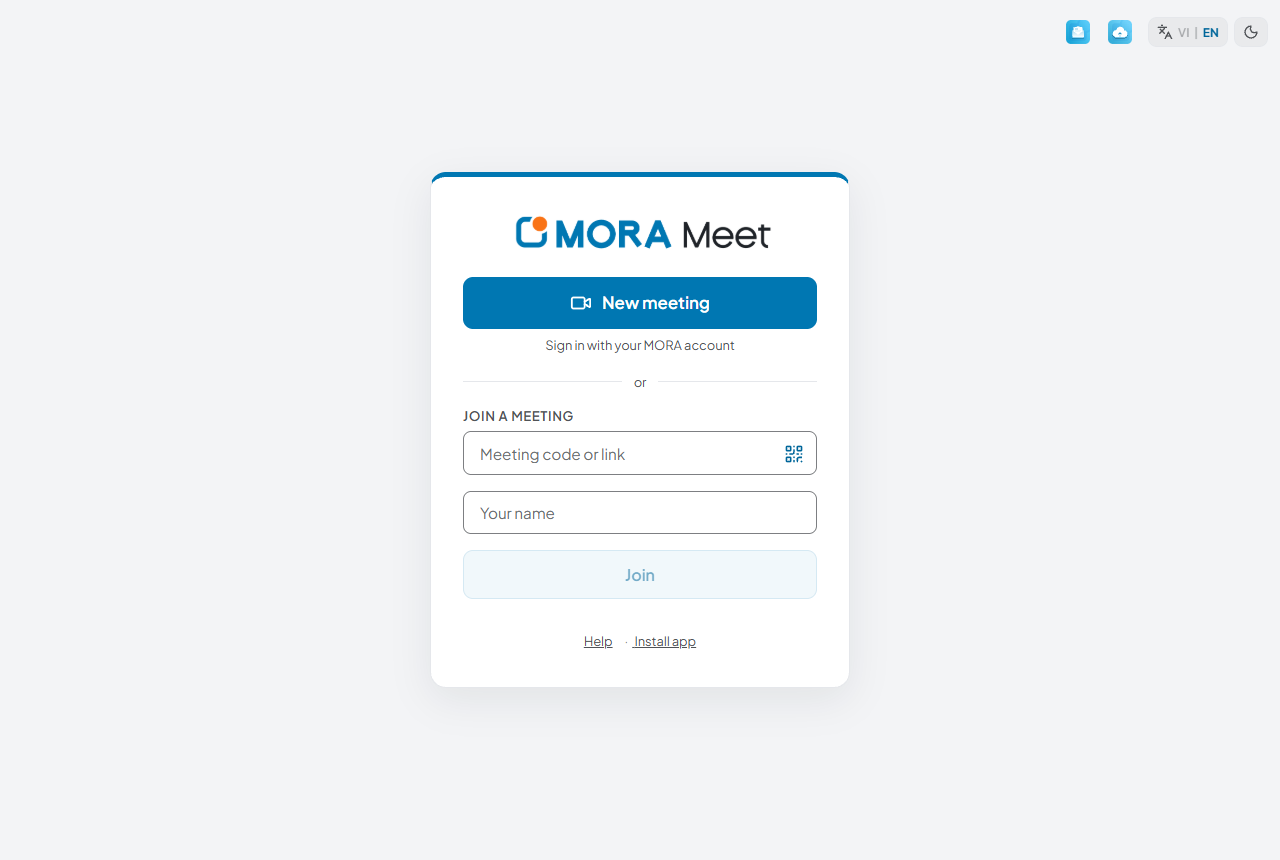
Sun / moon — switches between light and dark. The entry page defaults to light and the meeting room to dark so shared content is easier on the eyes; the two are remembered separately.
The same screen in dark mode.
How participants join
There are three ways in, and all of them go through the lobby:
Method
What the participant does
Best for
Type the meeting code
In the Join a meeting block: type the code (or paste the link), enter a name, click Join
People who are used to joining with a code
Invite link
Click the link and enter only their name
Sending with the meeting invitation by email or group chat
Personal QR card
Scan the card, type nothing
Guests joining on a phone, or events that hand out printed cards
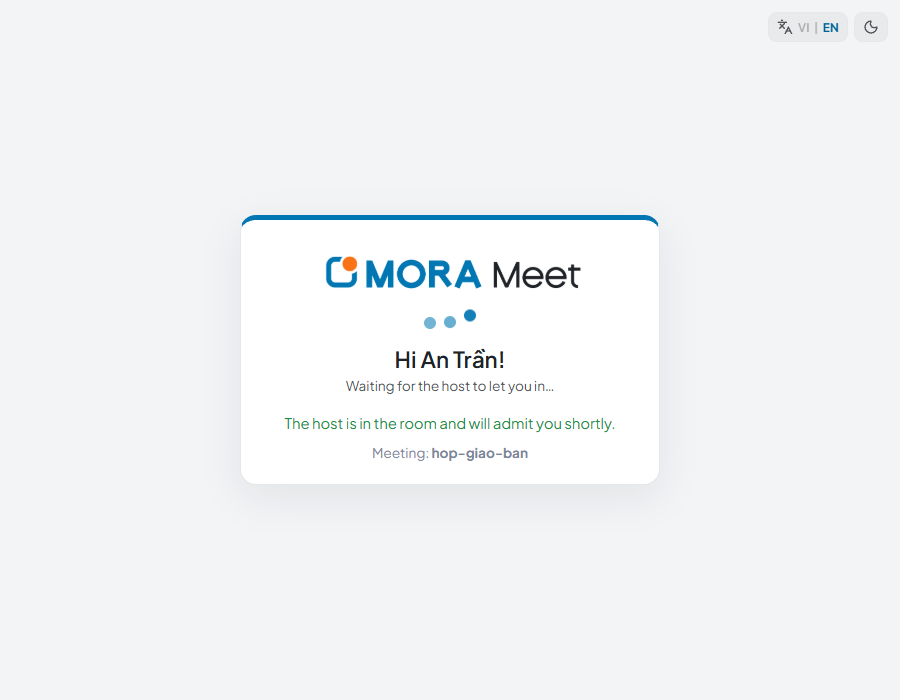
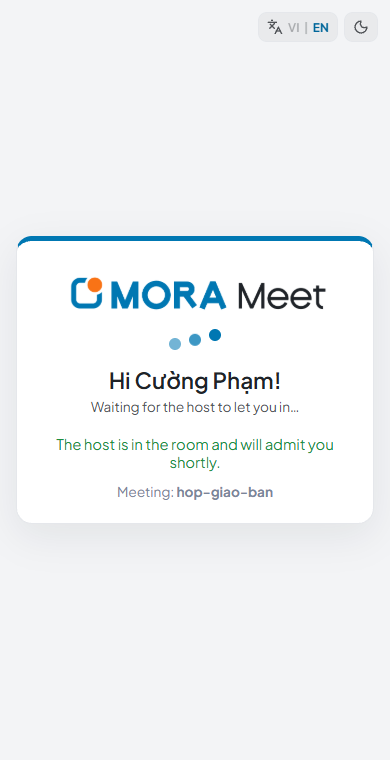
The participant’s waiting screen: one line of text and an animation, with nothing to click wrongly.
Running the meeting
Admitting participants
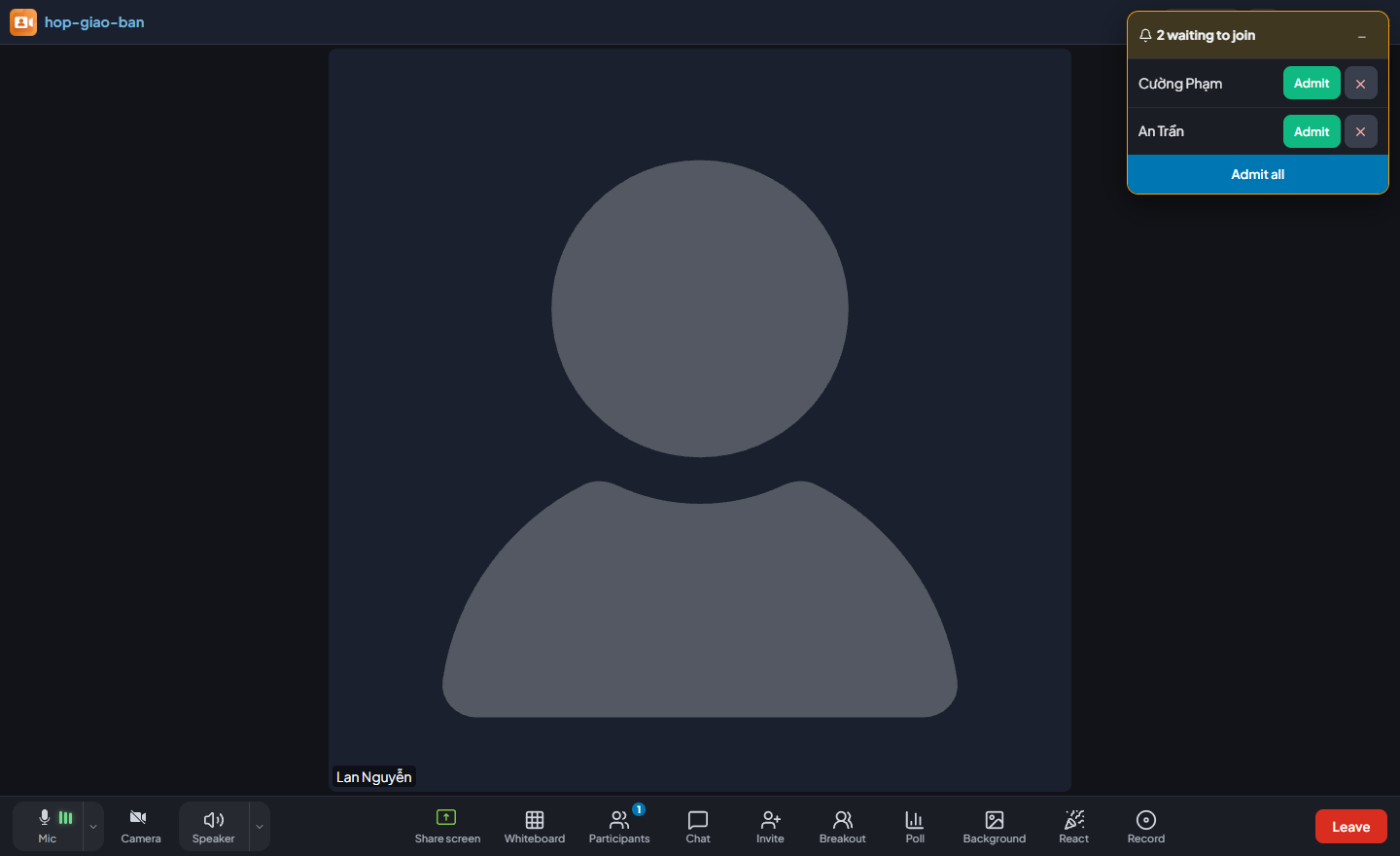
When a participant knocks, a notice appears in the middle of the host’s screen — no panel to open. Click Admit for each person, or Admit all when everyone arrives at once.
The lobby notice floats in the middle of the screen; the – button collapses it to a small chip.
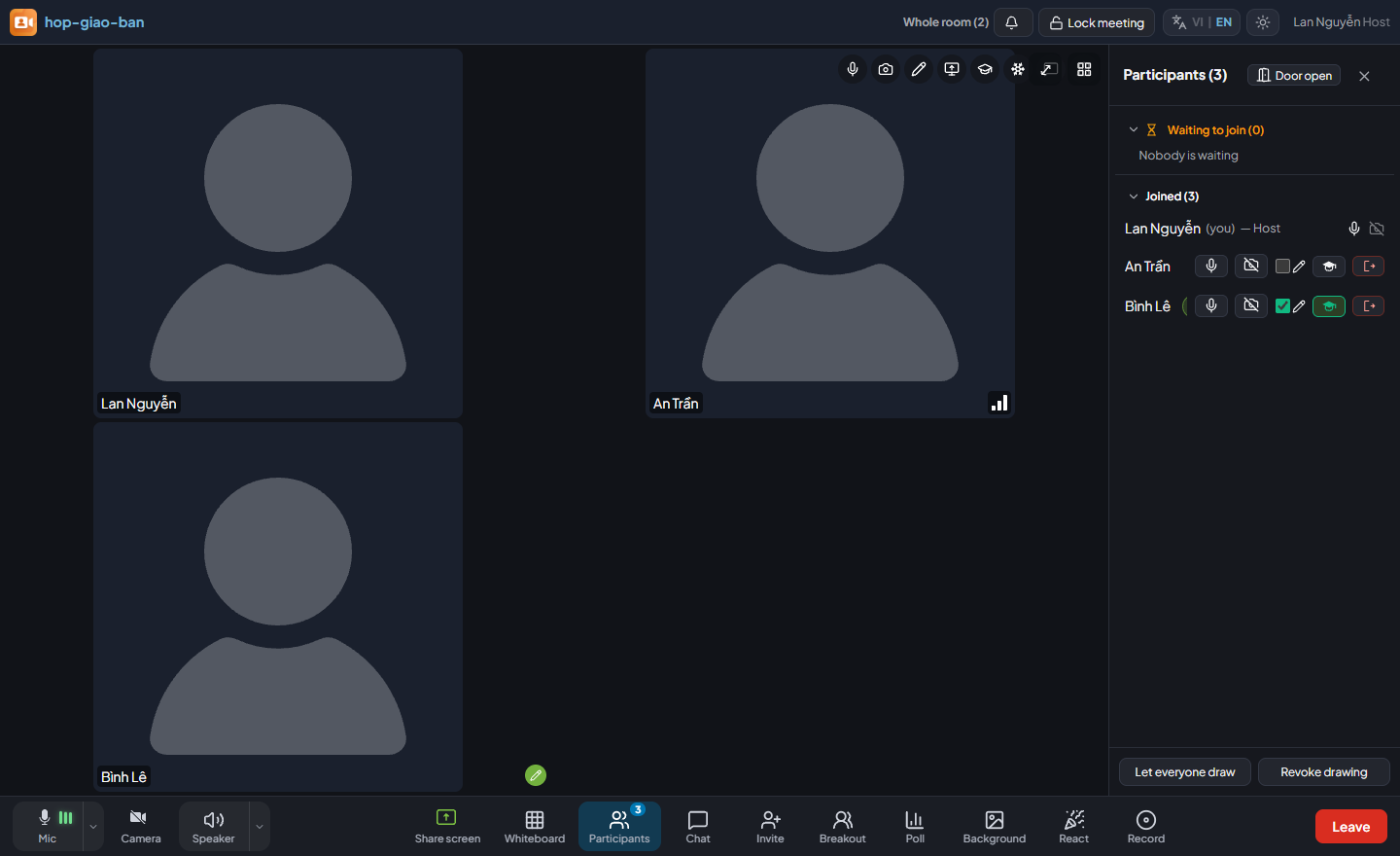
Once everyone has arrived, open the Participants panel and click Door open to switch it to Door locked. Latecomers are refused with a clear message, while anyone already waiting can still be admitted.
If you admit the wrong person, you can remove them from the Participants panel, with a confirmation step.
The control bar
The host’s control bar. Participants see fewer buttons.
Button
What it does
Mic
Turns your microphone on or off. The three green bars next to the icon move with your real voice — if you speak and they do not move, the wrong microphone is selected.
Camera
Turns your camera on or off.
Flip cam
Switches between front and rear camera. Only shown when the device has two cameras and the camera is on.
Speaker
Mutes what you hear. This is different from Mic: muting the mic stops everyone hearing you, muting the speaker stops you hearing everyone.
Share screen
Presents slides, a PDF, a video or your whole screen to everyone.
Whiteboard
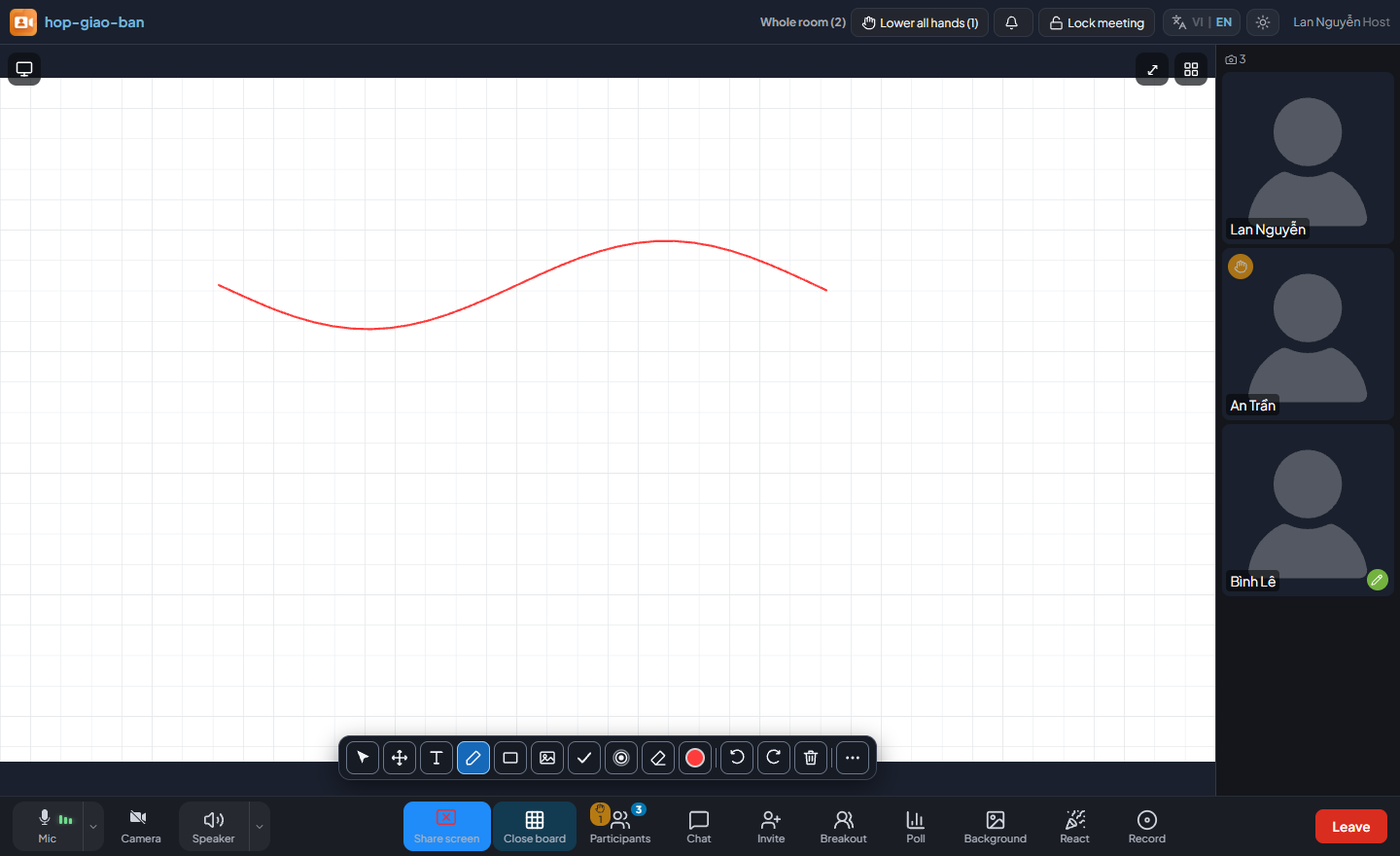
Opens a grid page for the whole room, written on with the pen toolbar.
Pen
Windows app only: opens the drawing toolbar over PowerPoint and any other application.
Participants
Everyone in the room, each participant’s permissions, and the door lock.
Chat
Messages to everyone and private messages. The badge shows unread messages.
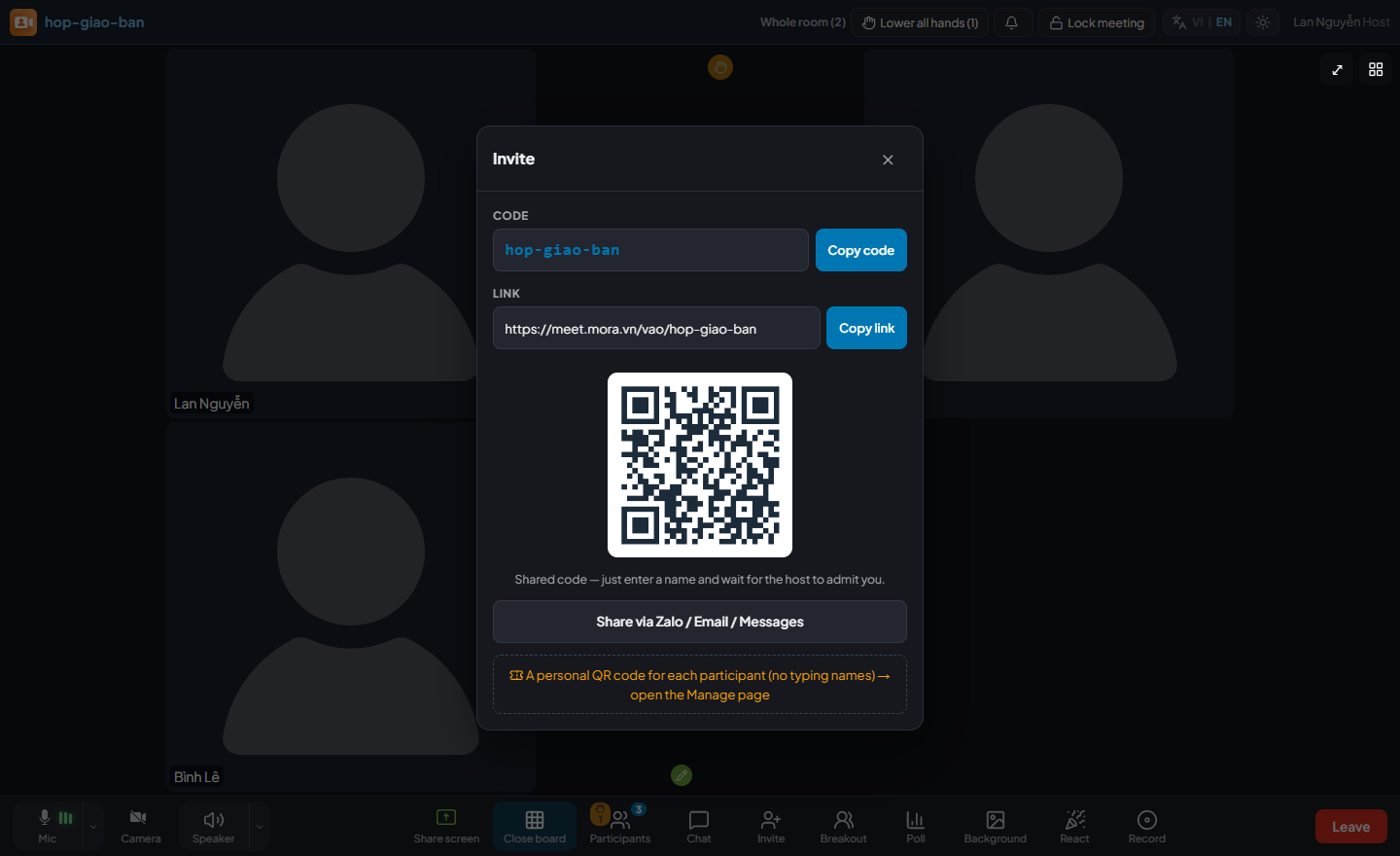
Invite
The meeting code, invite link and QR code to send to participants. Download QR saves a picture with the QR code, meeting code and link; Copy QR image to paste it into a message or email; phones also get Share QR image.
Breakout
Splits the meeting into breakout rooms and brings everyone back.
Poll
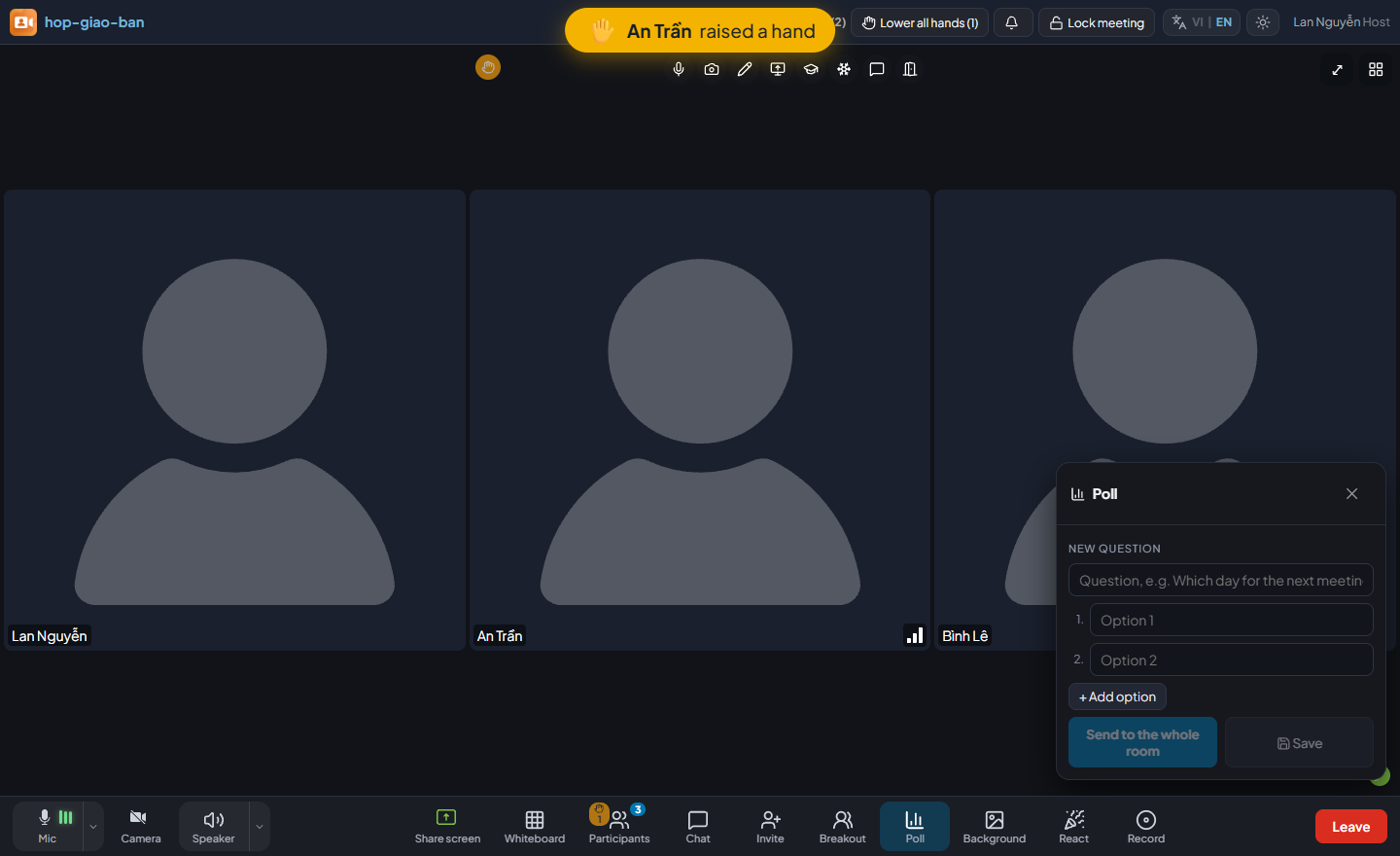
Sends a question with 2–6 options and shows votes arriving live.
Background
Blurs your background or replaces it with an image.
React
Sends an emoji that floats up on everyone’s screen.
Record
Starts or stops recording the meeting.
Leave
Hosts choose: leave alone, or end the meeting for everyone.
Choosing the right microphone and speaker
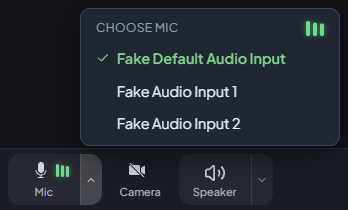
Picking the wrong device is the most common cause of “I cannot hear anything”. Next to the Mic and Speaker buttons there is a small arrow: it lists the devices on the computer, marks the one in use with ✓, and switching takes effect immediately without turning anything off.
The microphone list. The level meter in the top-right corner moves with your real voice, so you can test on the spot.
The camera has no device list: if the computer has two cameras, use the Flip cam button next to it.
Meeting locks — keeping order
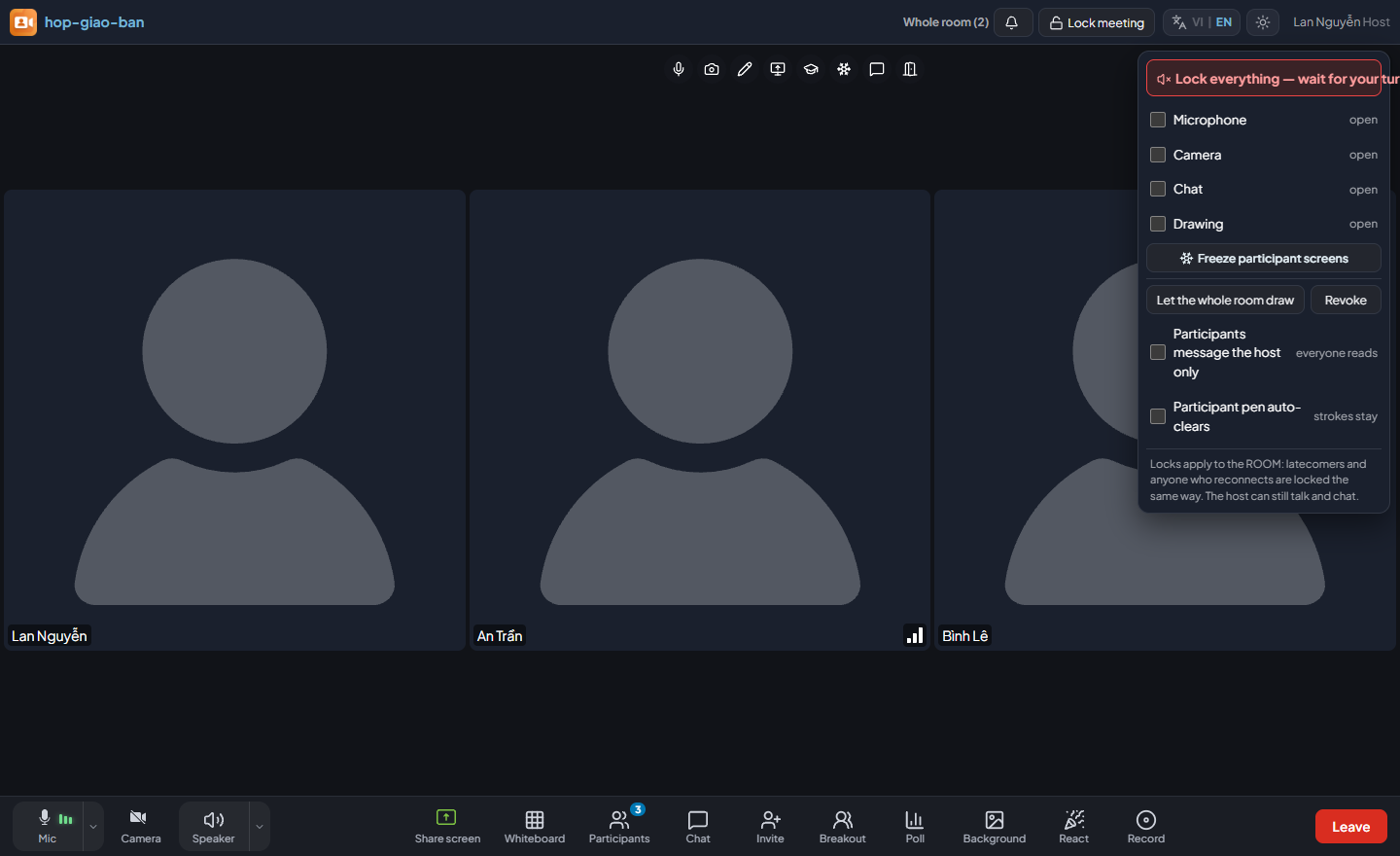
The Lock meeting button on the top bar opens one panel with everything you need when the meeting gets out of hand.
The meeting lock panel. The top button locks all four channels in a single click.
Lock everything — wait for your turn: locks microphone, camera, chat and drawing for the whole room at once.
Four separate switches below lock a single channel.
Freeze participant screens: every participant’s window stops responding, including the Leave button, while they can still see and hear the meeting.
Let the whole room draw / Revoke: grants or removes drawing rights for all participants.
Participants message the host only: they can still ask questions but cannot read each other’s messages.
Participant pen auto-clears: participants’ strokes fade after 5 seconds — useful when the whole room marks up the screen at once.
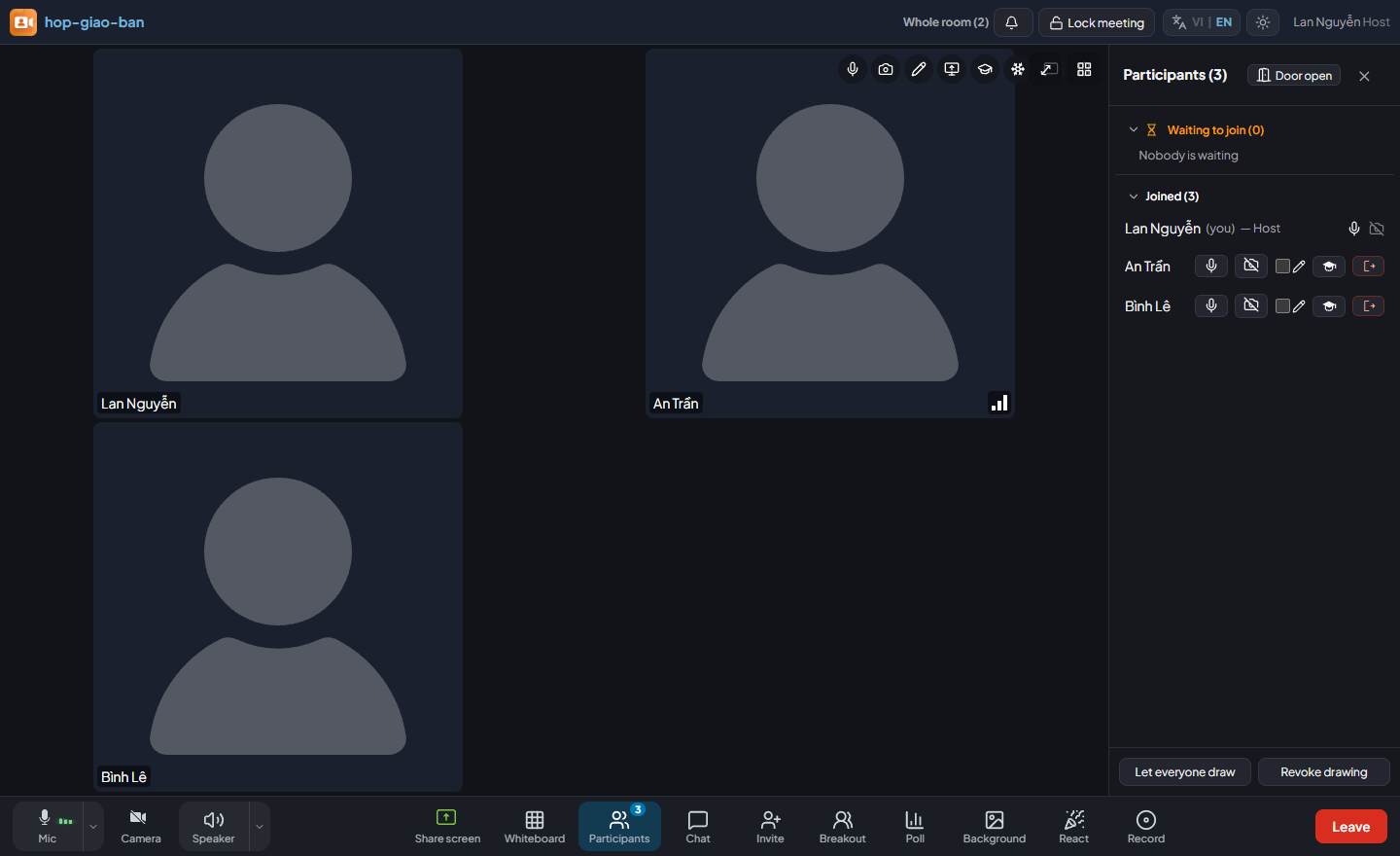
Participants panel — per-participant controls
Each row is one participant with that person’s controls.
Mute or unmute the microphone and lock or unlock the camera for each participant from their row.
The allow drawing checkbox promotes a participant from viewer to drawer.
Co-host gives someone full host rights: share the screen, draw, admit people, mute, remove, lock the door, record, run polls, Bingo and breakout rooms. You are asked to confirm first. Only the person who opened the meeting can end it for everyone. Click the button again to take all the rights back at once.
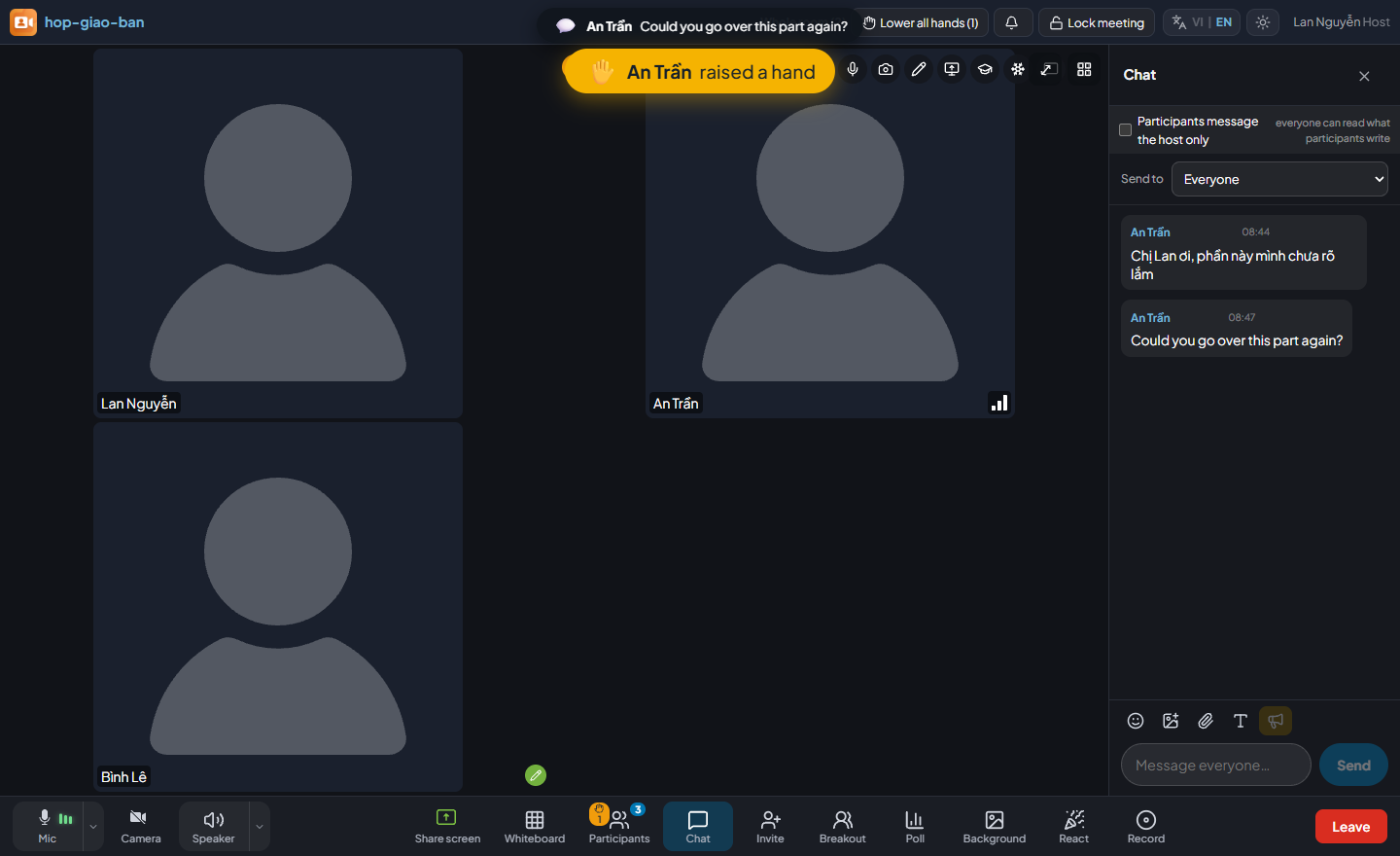
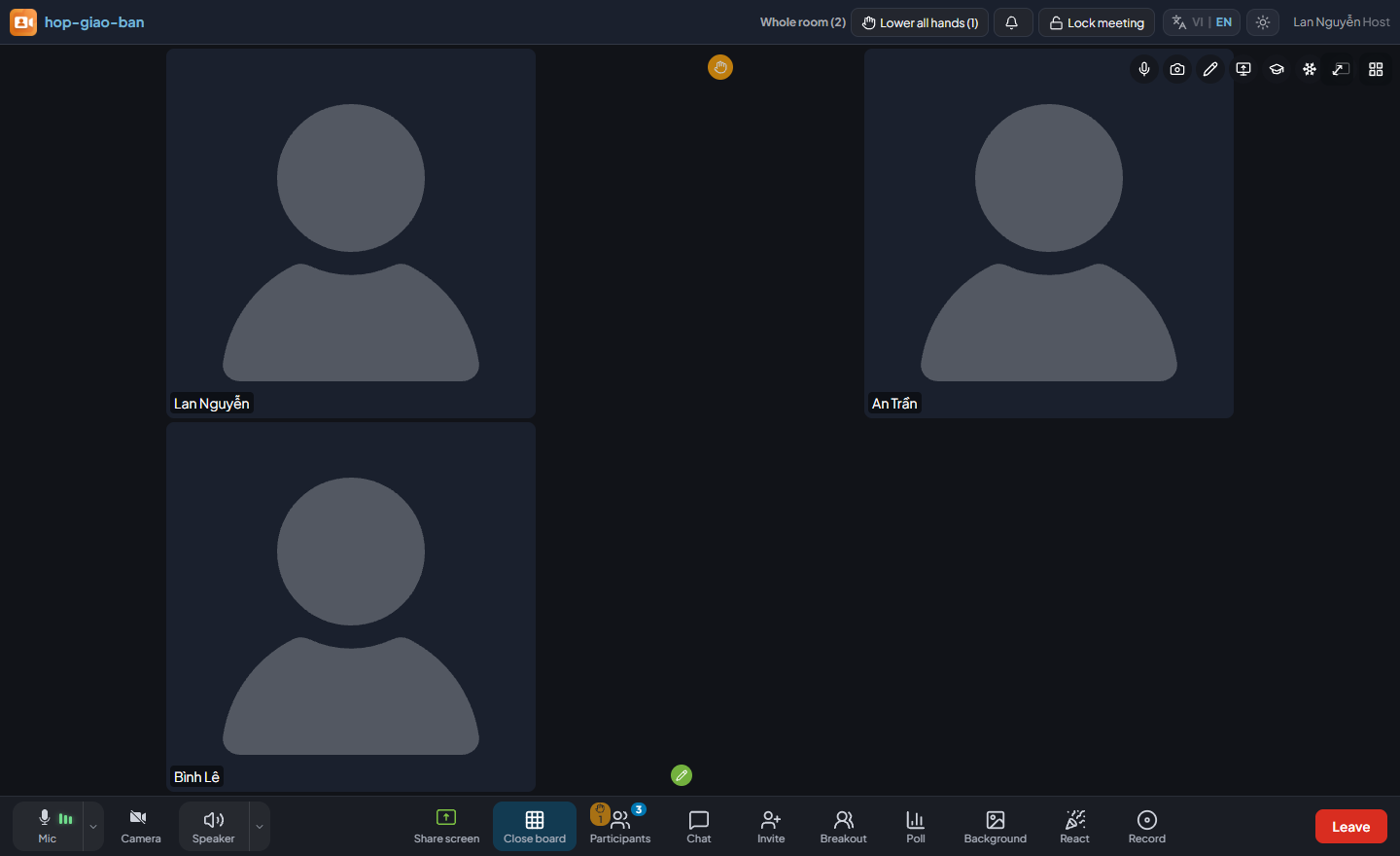
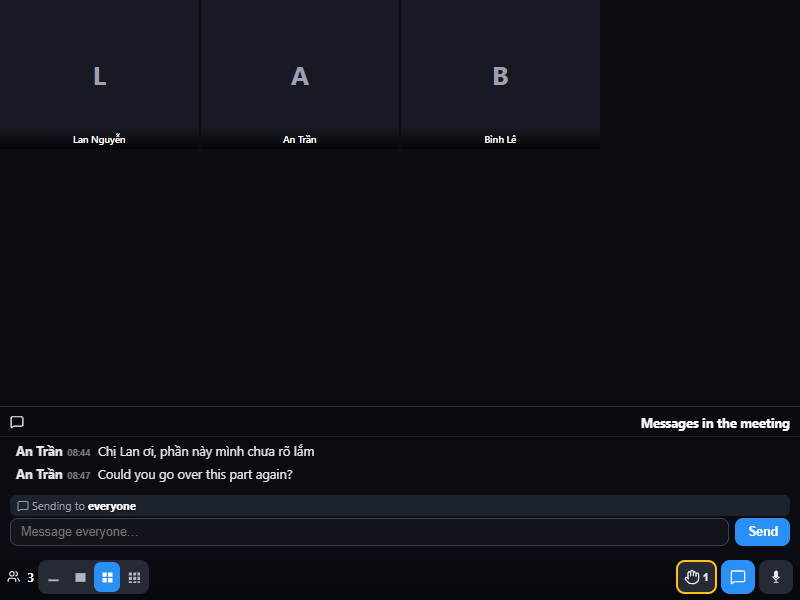
Lower hand clears one participant; the top bar has a button to lower all hands. Quicker still: a raised hand shows as a flashing yellow hand badge on that person’s tile — click the badge itself to lower the hand, with no other button to hunt for.
Remove from meeting asks for confirmation.
A participant who has been made co-host is clearly marked in the list.
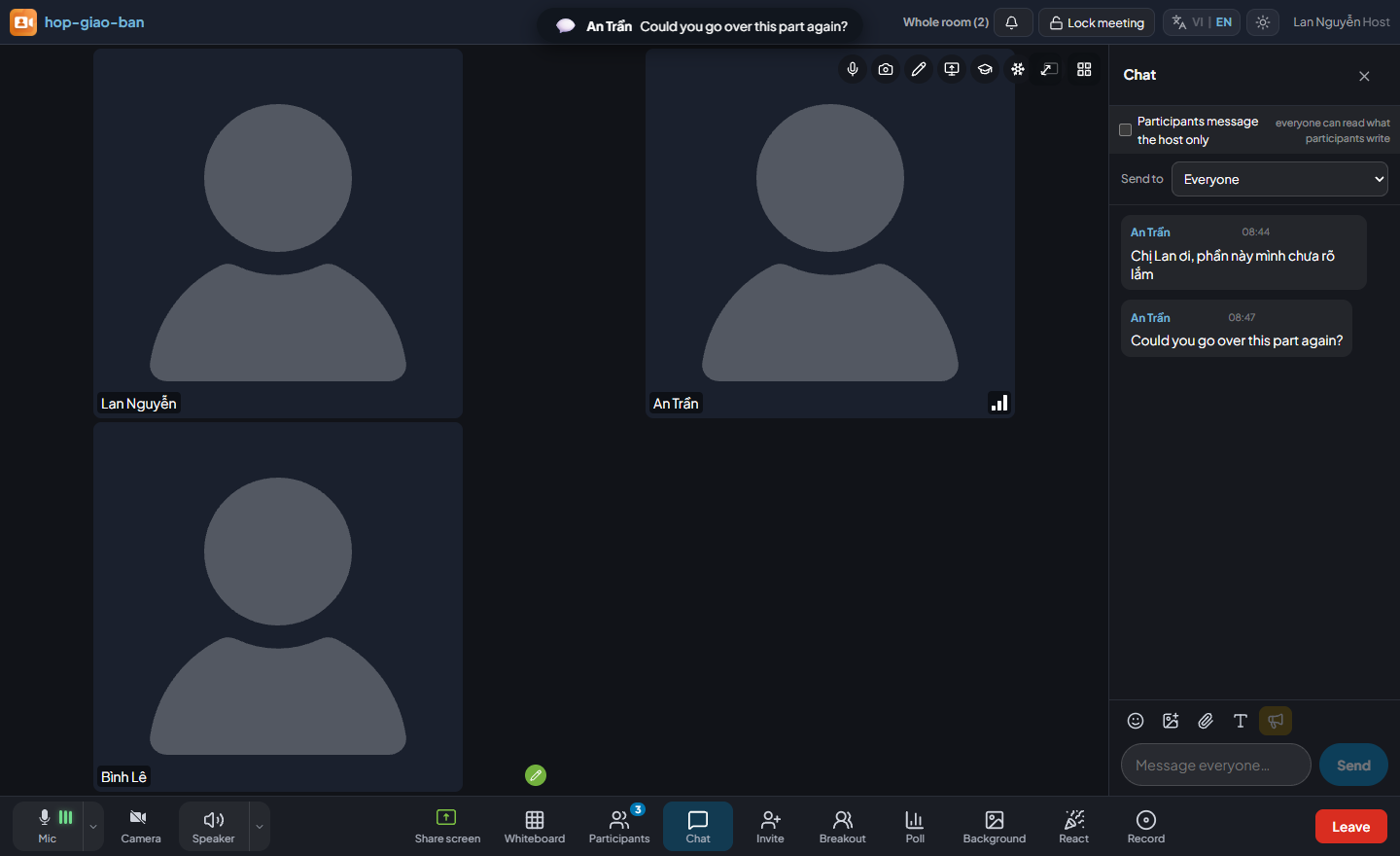
Chat
The chat panel: private conversations along the top, private messages in a yellow frame with a lock icon.
You can send large stickers, images (paste directly with Ctrl+V) and files up to 25 MB.
Every message has a Reply button that goes to the right place: messages to everyone get a reply to everyone, private messages reply privately to that person.
Hosts can retract anyone’s message; participants can retract their own.
You can disable chat for one participant: they can still listen, draw and raise their hand, but cannot send messages.
Hosts can broadcast a scrolling notice over the shared screen, such as “Q&A starts in five minutes”.
Raised hands and reactions
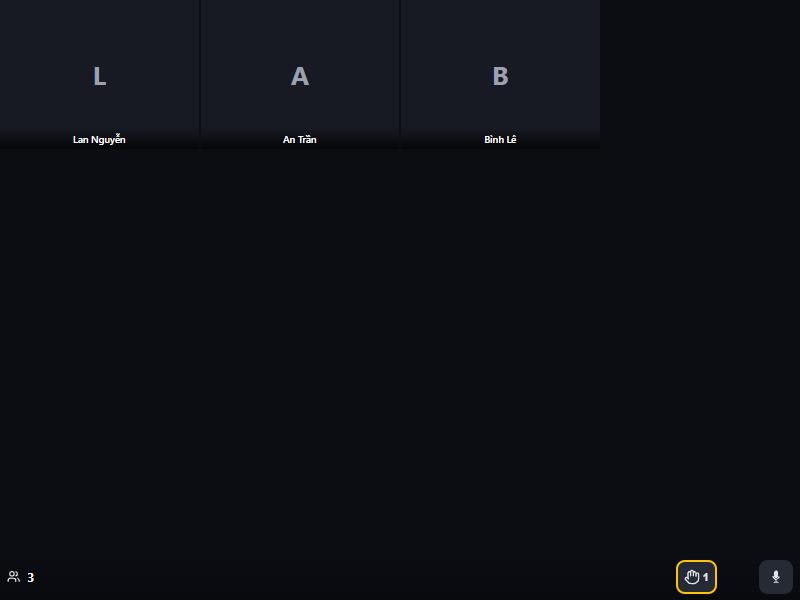
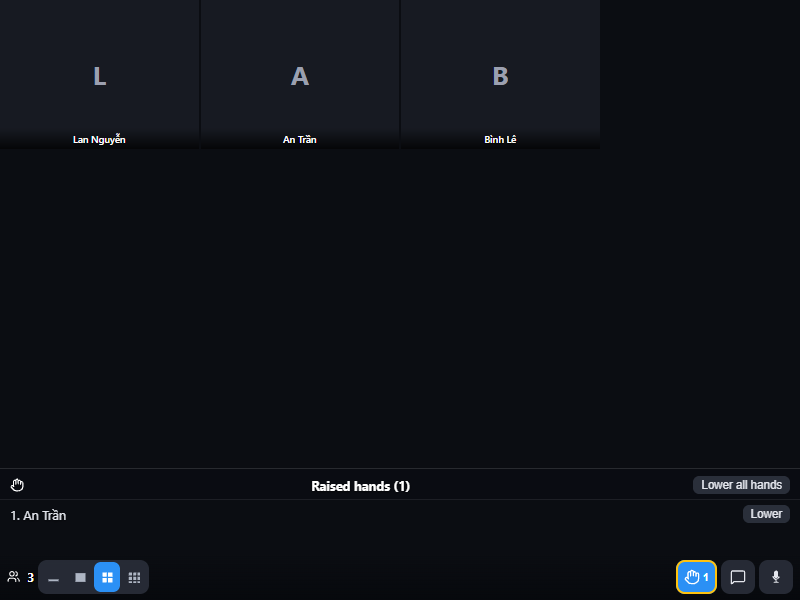
A participant asking to speak gets a yellow hand marker, and the top bar counts how many are waiting.
When a participant clicks Raise hand, a yellow hand appears on their tile and the top bar shows the count with a Lower all hands button. The React button sends an emoji that floats up on everyone’s screen and fades.
Ending the meeting
Participants who click Leave are asked to confirm, which prevents accidental taps on a phone.
Hosts who click Leave choose between Only I leave (the meeting continues) and End meeting for everyone.
Only the host who opened the meeting can end it for everyone, so a co-host or a host who joined later cannot disconnect the meeting by mistake.
If everyone leaves without ending the meeting, the room closes itself after five empty minutes.
Presentation tools
Sharing your screen
Click Share screen and choose what to present. There are two kinds, and the choice matters:
Kind
Participants see
Use when
One window
Only that window, nothing else on your computer
Presenting one slide deck or one PDF
Whole screen
Everything open on that screen
Switching between several applications during the meeting
A slide being presented in the meeting, with the pen toolbar floating above it.
In Chrome and Edge, switching to another tab or application tucks the meeting into a small floating panel that stays on top. The panel only opens by itself while the host’s camera or microphone is on — a browser requirement. With both off, or if the browser will not open it automatically, a note with an Open the floating panel button appears in the bottom-right corner. The note steps aside while the Chat, Participants, Polls or Breakout column is open; its ✕ button hides it until the end of the session, and it comes back next time.
Choosing how participants see your camera
While you are sharing, a small button at the top right of the shared screen rearranges the participants’ screens — not your own. After you choose, your screen borrows that layout for about six seconds so you can see what everyone sees, then returns to the host view. You never have to guess whether your choice reached the participants.
Choice
Participants see
Use when
Shared screen only
The shared screen fills the view, with your face small in the camera strip above it
Most of the time, when people are mainly reading the shared content
Side by side
The shared screen on the left, your face large on the right
Presenting, explaining or interviewing, when people need to see the speaker’s expression
Over a corner of the shared screen
Your face large in one corner of the shared screen; drag it to another corner
The content needs the whole page but you still want your face clearly visible
The pen toolbar — twelve tools
The pen toolbar. Buttons marked ▾ open more choices.
Tool
What it does
Select
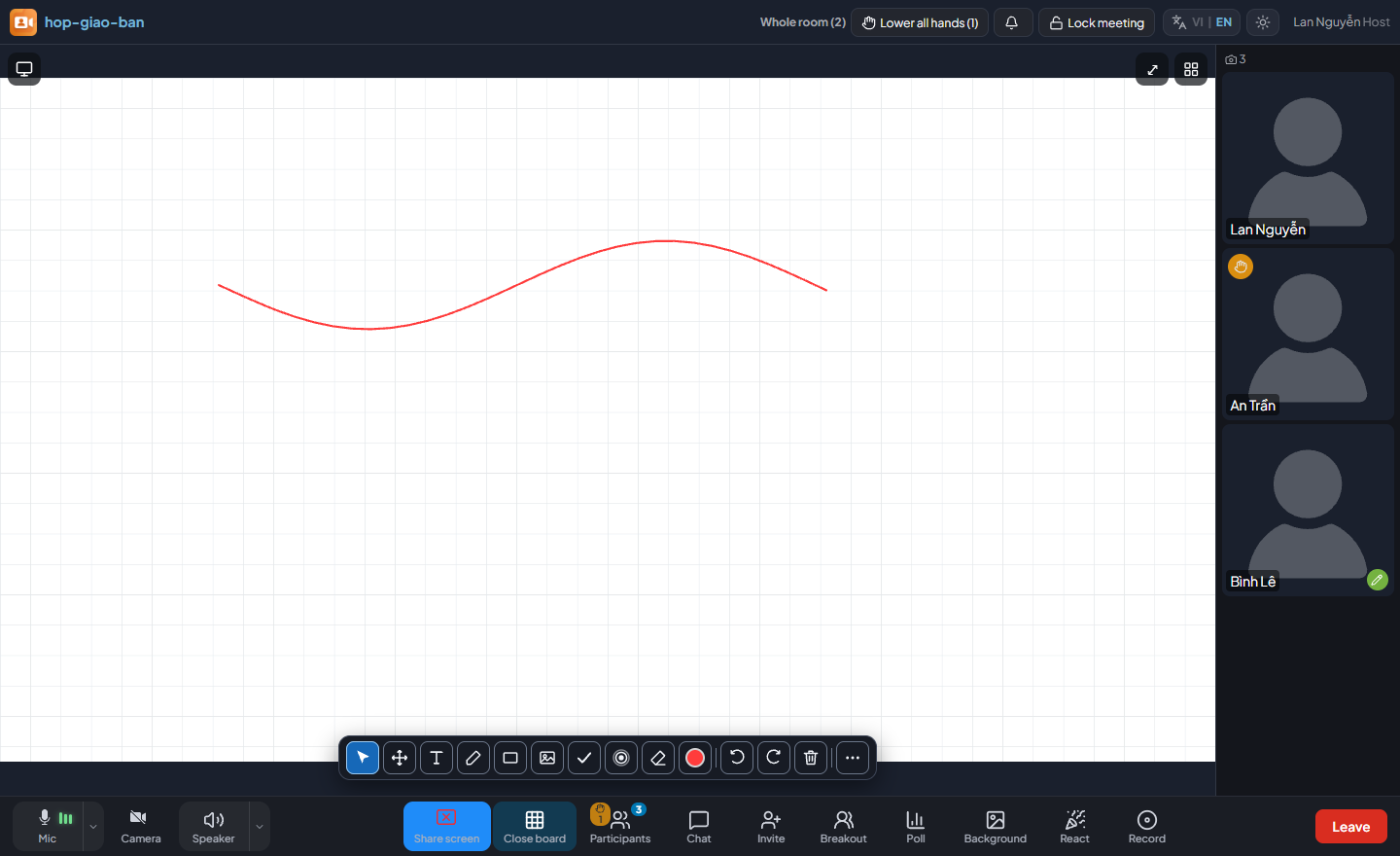
Lets the mouse pass through so you can use the software underneath as usual.
Move
Drags one stroke, text box or stamp somewhere else.
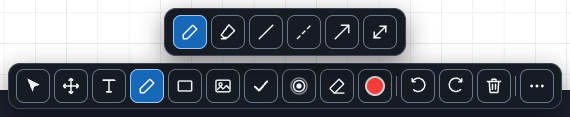
Pen ▾
Pencil, highlighter, arrow and line.
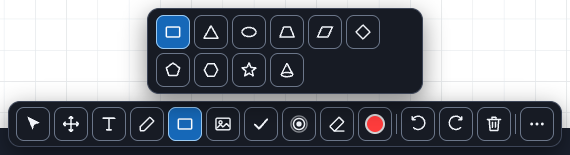
Shape ▾
Rectangle, ellipse, triangle and a set of geometric shapes: trapezium, parallelogram, rhombus, pentagon, hexagon, star and cone.
Text
Types text on the shared screen. Enter adds a line, Ctrl+Enter or clicking outside finishes, and A− A+ change the size.
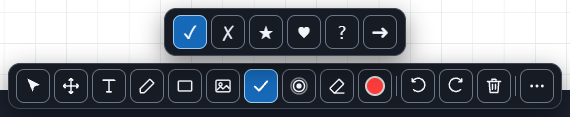
Stamp ▾
Six marker stamps: ✓ ✗ ★ ♥ ? →
Eraser
Erases individual strokes. Participants can only erase their own.
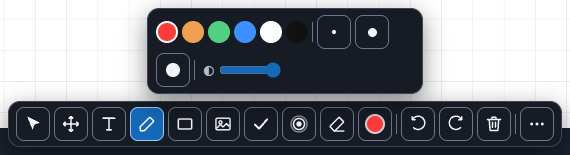
Colour ▾
Six colours and three stroke widths.
Undo / Redo
Steps back or forward. Even Clear all can be undone.
Insert image
Places an image on the shared screen for everyone, and you can draw over it.
Clear all
Clears the board. It asks first, and Undo brings it back.
More ⋯
Saves the shared screen as an image, shows who drew what, and locks drawing for the whole room.
The Pen menu.The Shape menu, including the geometric shapes.The six marker stamps.Six colours and three stroke widths.What the host draws appears immediately on everyone’s screen.
Whiteboard
Click Whiteboard and the whole room sees a squared page — ready to present without any slides. Write with the same pen toolbar, record it, and latecomers still see everything already written.
The squared whiteboard, useful for sketching diagrams and lining up figures.
Polls
Send a question with 2–6 options. Participants tap a large button and can change their answer until you close the poll; votes arrive live, and when you close it the whole room sees the result for ten seconds. Question templates are written once and reused in any meeting.
The poll panel floats in a corner without shrinking the shared screen or the cameras.
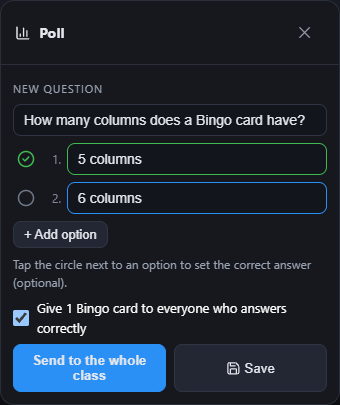
Quiz questions: while writing a question, tap the circle next to an option to mark it as the correct answer. When you close the poll, the whole room sees the correct answer highlighted in green and each participant sees whether they got it right. The answer stays hidden until you close the poll. Templates keep their correct answer.
The green circle marks the correct answer. While a Bingo game is running, the box below gives 1 card to everyone who answers correctly.
Who chose what: the host’s Poll panel lists which option each person picked, updated as they tap. For a quiz, each row is marked right or wrong, with a total such as “3 of 5 correct”. Participants only see the counts. In MORA Meet, colleagues with host rights can vote too — only the person who sent the question cannot.
Bingo game
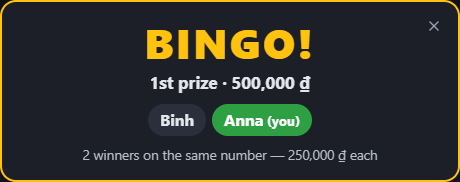
Each participant gets a 5×5 Bingo card (columns B-I-N-G-O, free centre square). The host draws numbers or types in numbers pulled from a real cage; called numbers are marked on everyone’s card automatically. A full row, column or diagonal wins: the server detects it and announces the winner’s name and prize to the whole room.
The BINGO banner appears on everyone’s screen with the winners’ names; two people winning on the same number share the prize.
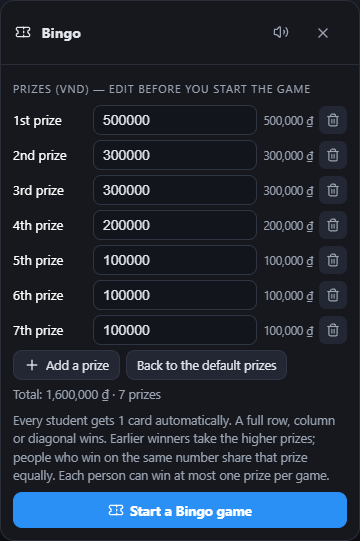
Click Bingo on the toolbar. Choose the prize type: Cash or Gifts (type a gift name for each prize, or leave it blank). Default cash prizes: a 1st prize of 500,000 ₫, two of 300,000 ₫, one of 200,000 ₫ and three of 100,000 ₫. Edit them if needed, then click Start a Bingo game.
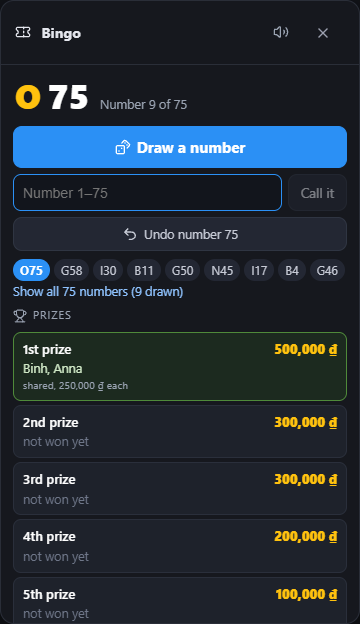
Click Draw a number for a random draw, or type a number and click Call it. If you mistype, click Undo number …: the number is removed, and if it had just produced a winner, that prize goes back into play.
To reward ONE person: in the Give cards to… row right under the draw button, pick the name and how many cards (1–5), then click Give; or click +1 card next to a name in the list. To reward everyone: Give every participant one more card. When you send a quiz in Poll, mark the correct answer and keep Give 1 Bingo card to everyone who answers correctly ticked: when you close it, correct answers earn a card and the names are announced to the room.
The game ends by itself once every prize has been won. To stop early, click End the game twice.
Before starting: edit each prize amount, add or remove prizes.During the game: draw, type a number in, undo the last one; below are the prizes and who has won them.
Prize rules: earlier winners get the higher prizes. People who win on the same number share that prize equally (rounded down to the dong); the next prize waits for the next winner. In a gift game, everyone who wins on the same number gets that gift. Each person can win at most one prize per game, however many cards they hold.
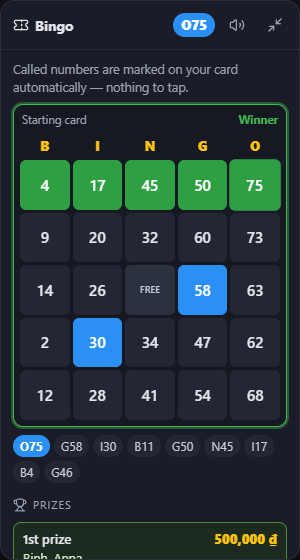
For participants: cards appear in the bottom-left corner without covering Chat; they can be minimised and reopened with the Bingo button. A card one number away from winning gets a yellow border and shows One to go!. Each new number pops up as a ball in the middle of the screen with a sound; mute it with the speaker icon in the card box.
Reloading keeps the cards: a participant who comes back on the same device and browser gets the same cards back and is not given extra ones.
Called numbers are marked automatically (blue squares); the winning line turns green.
Backgrounds
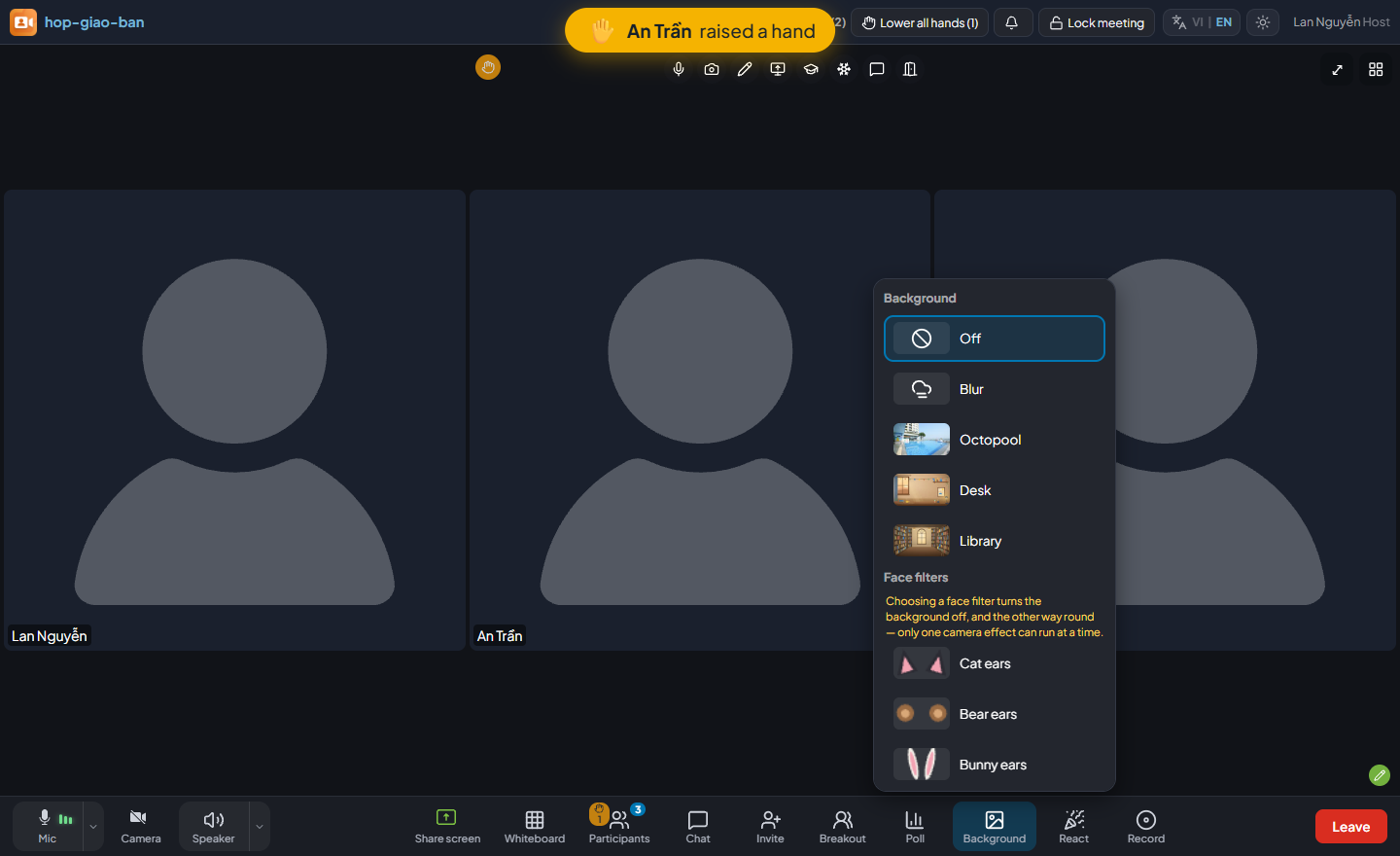
Blur your background or choose an image.
The same panel also offers Face filters: cat, bear and rabbit ears, sunglasses, a diving mask, a party hat, a crown, a moustache and a clown nose — the props track the face, including how the head is tilted.
Choosing dress-up turns the background off and vice versa: a device can only run one camera effect at a time. On low-powered devices dress-up slows itself down to keep the device cool.
All the detection runs on the device itself: not a single frame of your video is sent to any outside service.
Recording
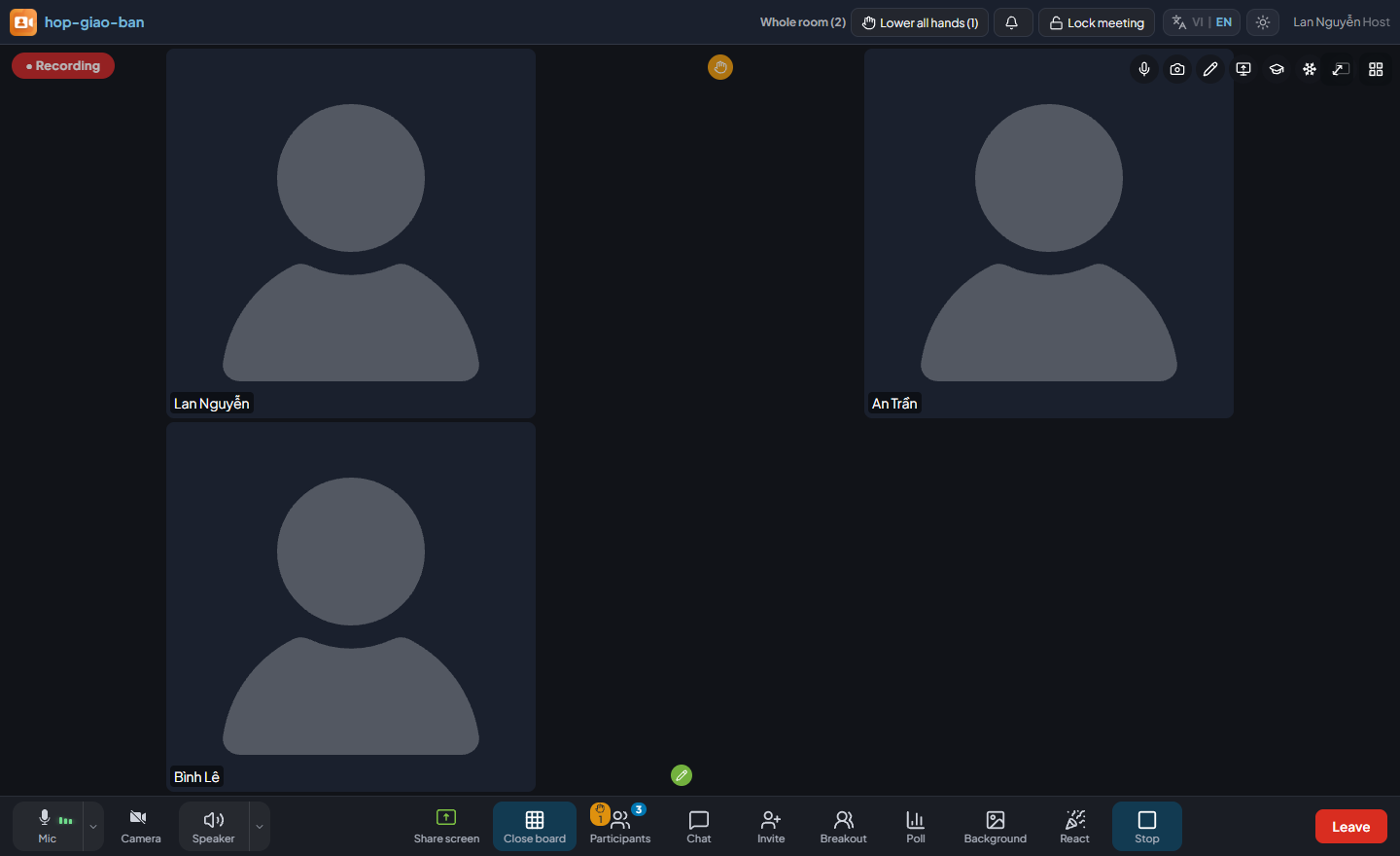
The “● Recording” badge shows the meeting is being recorded. Everyone in the meeting sees it for as long as recording continues.
When recording starts, every participant gets an on-screen notice: “This meeting is being recorded, both video and audio.” Anyone who joins while recording is under way sees the same notice as they arrive.
The recording includes all drawings by the host and participants, even those made before recording started.
If you start recording before anyone turns on a camera, microphone or screen share, the system asks first, because the recording would be empty.
Stopping within the first twelve seconds also asks for confirmation: the recorder has not finished starting and nothing would be saved.
Windows app for hosts
A browser can only draw on web pages. The Windows app draws on anything: a PowerPoint slideshow, a PDF, any application. It installs in one click and needs no administrator rights.
Open the download page at /tai-app and click Download for Windows (shown as “Tải về cho Windows”).
Windows shows a blue “Windows protected your PC” screen: this is the organisation’s in-house software and is not distributed through a store, so Windows does not recognise it yet. The screen appears only the first time. Click More info then Run anyway.
After installing, open the app and sign in once. From then on it opens straight into your meetings.
Drawing outside the browser
Click Pen on the control bar, or press Alt+V. The pen toolbar appears over everything on screen; until you pick a tool, the mouse passes through so you can change slides as usual.
Floating panel — keep the meeting in view
The meeting window shrinks whenever it is covered into a small panel that stays on top of your other windows: switching to PowerPoint, clicking into another application, or minimising all do it, and you do not have to be sharing your screen first. The panel has no title bar and cannot be maximised, but from version 1.0.38 you can resize it by dragging one of its edges. Everything else is done with the buttons inside it.
The floating panel: everyone’s cameras as a backdrop with controls on top.
Admit participants, see who is raising a hand, and read and answer messages inside the panel.
Mute, lock a camera, freeze or remove a participant with the buttons on their tile — in all four layouts. The smallest layout keeps tiles clean: point at a tile and that person’s name and full set of buttons appear; move away and the tile is just a face again.
Move the panel: grab anywhere that is not a button — the video area or the button bar’s background — and drag, just like the pen toolbar. Resize it: grab an edge and drag. The panel remembers the position and size you chose, and stops rearranging itself after that.
The four arrows ⬆ ⬇ ⬅ ➡ snap the panel to an edge, and the app remembers that corner for next time. Pressing an arrow is also how you hand the panel back to automatic placement after moving it by hand.
Four camera layouts: Compact (buttons only), Speaker, Grid and Tiles (everyone at once).
The panel is excluded from screen capture, so private messages inside it never reach participants’ screens or the recording.
The panel shrinks to fit how many people are in the room, and offers a top strip layout flush against the very top of the screen — that leaves the middle of the screen clear for your presentation. The app remembers your choice.
Leave it alone for a few seconds and the panel tidies itself down to everyone’s faces: the secondary buttons hide and the panel drops the spare height, so no black band is left covering your presentation. It opens back up when you point at it, or when something needs you — a raised hand, someone waiting to be admitted, a new message. Back to meeting and the microphone button always stay visible.
Once a job is done the panel closes the list and shrinks by itself: admit the last participant and a couple of seconds later it tidies back down to the faces. To close it at once, click the same button you opened it with.
Click Back to meeting in the panel to restore the full meeting window.
Seeing who is asking to speak, inside the floating panel.Answering messages without going back to the meeting window.
Three window keys
F11
Toggle full screen
F10
Back to a normal window (exits full screen, closes the floating panel)
F9
Minimise — while in a meeting this brings up the floating panel
These keys only work while the meeting window is focused, so they do not interfere with PowerPoint or the browser.
Automatic updates
When a new version is available, the app’s main screen shows A new version is available — update to continue (shown as “Có bản … — cần cập nhật để tiếp tục”) and pauses the app. The box shows a download progress bar with speed and remaining time, usually under a minute. Wait for Download complete (shown as “Đã tải xong”) and click Update now (shown as “Cập nhật ngay”): the app closes, installs for about a minute and reopens by itself.
After the meeting
Open /quan-ly, or click Manage meetings on the entry screen after signing in. If you are not signed in, the page shows only the sign-in box; once you sign in, the Manage page opens.
The Manage page with three views — Meetings, Participants and Schedule — at the top.
Section
What you can do
Meetings
Create meetings ahead of time, add co-hosts by email, and enter a meeting with one button.
Participants
An organisation-wide profile: someone in two meetings is edited in one place. View attendance and give marks by day, week or month on a 0–10 scale.
Schedule
A month view: upcoming days show scheduled sessions, past days show only sessions with a recording, so only meetings that really happened appear. Click a session to open that meeting.
Invite
The invite link, the meeting QR code, and a personal QR card for each participant — print them all on one A4 sheet.
The Invite dialog: meeting code, link and QR code.A participant scanning their personal card: nothing to type, they knock on the meeting with the name on the card.
Sharing a recording
In the Schedule view, every session with a recording has a Share button that creates a short link, safe to paste into an email or chat. Whoever receives it — a participant or someone outside the organisation — clicks it and watches straight away, with no account, and online only — there is no download.
For administrators
The /admin page is for administrators, not hosts. The shared host code does not grant access.
Meeting overview — every host’s meetings on one screen: which are open, how many people are in them and who is hosting.
Past sessions · Participants · Host schedule · Recordings · Attendance — organisation-wide data, exported to Excel with one click.
Recordings › Who can download recordings — pick a host by name (or type an email) to grant download permission; revoke with one click. A permitted host can download only their own meetings’ recordings. The panel also lists recent downloads: who, when and which recording.
Settings — change the logo, add or remove administrators, and the shared host code switch.
System — SSO sign-in, media servers and load sharing, plus feature switches for recording, file sending in chat and the app download page.
Health check — dozens of checks run in parallel and repeat every five minutes, with a one-line verdict and a recommended action for each problem; includes real-time load monitoring and a “Check from this device” panel.
Licence — licence status and the limits on concurrent meetings and participants per meeting.
Troubleshooting
Symptom
What to do
You speak but nobody can hear you
Look at the three bars next to the Mic button: if they do not move while you speak, the wrong microphone is selected. Click the arrow next to Mic and pick the right device.
You cannot hear anyone
Check whether the Speaker button is muted, then use the arrow next to it to select the correct speaker or headset.
A participant types the code but cannot get in
Check the meeting code, and whether the door is locked (Participants panel). If it is, unlock it or admit the person from the waiting list.
Entering the host code says “Too many failed attempts”
Several different wrong host codes came from the same network within 15 minutes, so the system has paused accepting the shared code from that network to stop strangers from guessing it. Wait for the stated number of minutes and enter the correct code again, or sign in with your account.
Drawings appear in the wrong place for participants
Update the app to 1.0.34 or newer. From this version the drawing frame tracks the shared window even when the pen toolbar is turned on after sharing starts, and it re-checks itself throughout the meeting. Participants’ devices lock the aspect ratio to your resolution: the leftover area stays black, with no zooming and no cropping.
The pen toolbar says the drawing frame ratio is off and will not draw
This is a safety stop: the software detected that the drawing frame does not match the shared area, so it locks the pen instead of letting strokes land in the wrong place for participants. Click Change source and pick the window again, or share the whole screen — a full-screen share always matches.
The connection drops mid-meeting
A “reconnecting” notice appears. Once reconnected, earlier drawings and messages are still there; anything drawn or typed while offline was not sent.
An older iPad cannot join
iOS 12–15 has been supported since 20 August 2026. Switching to Chrome on an iPad does not help — every browser on iPad uses the same Safari engine.
A large meeting is choppy
Ask participants to turn on Data saver (host and shared screen only), or lock some cameras from the meeting lock panel.
Recording reports an error
Start recording only once someone has a camera on or a screen is being shared, and wait at least twelve seconds before stopping.
Quick reference
Pen toolbar shortcuts
Hold Alt and press a letter. Pressing the same key again cycles to the next option in that group.
Alt+V
Show or hide the drawing toolbar (Windows app)
Alt+A
Select — the mouse passes through
Alt+M
Move a stroke, text box or stamp
Alt+P
Pen — press again to cycle pencil, highlighter, arrow, line
Alt+R
Shape — press again to cycle the shapes
Alt+T
Text
Alt+S
Stamp — press again to cycle the six stamps
Alt+E
Eraser
Alt+C
Colour and stroke width
Alt+Z
Undo
Esc
Close the drawing toolbar immediately
Window keys (Windows app)
F11
Full screen
F10
Back to a normal window
F9
Minimise — in a meeting this opens the floating panel
Getting help
This handbook is always available at /sotay/en on your meeting site and is updated together with the software.